How to stop videos from autoplaying in Chrome
News sites, recipe blogs and shopping pages start videos the moment they load, often with sound. Chrome's own sound setting mutes a site but doesn't stop the video, so it still plays, eats data and jumps around the page.
The fix: Hushplay
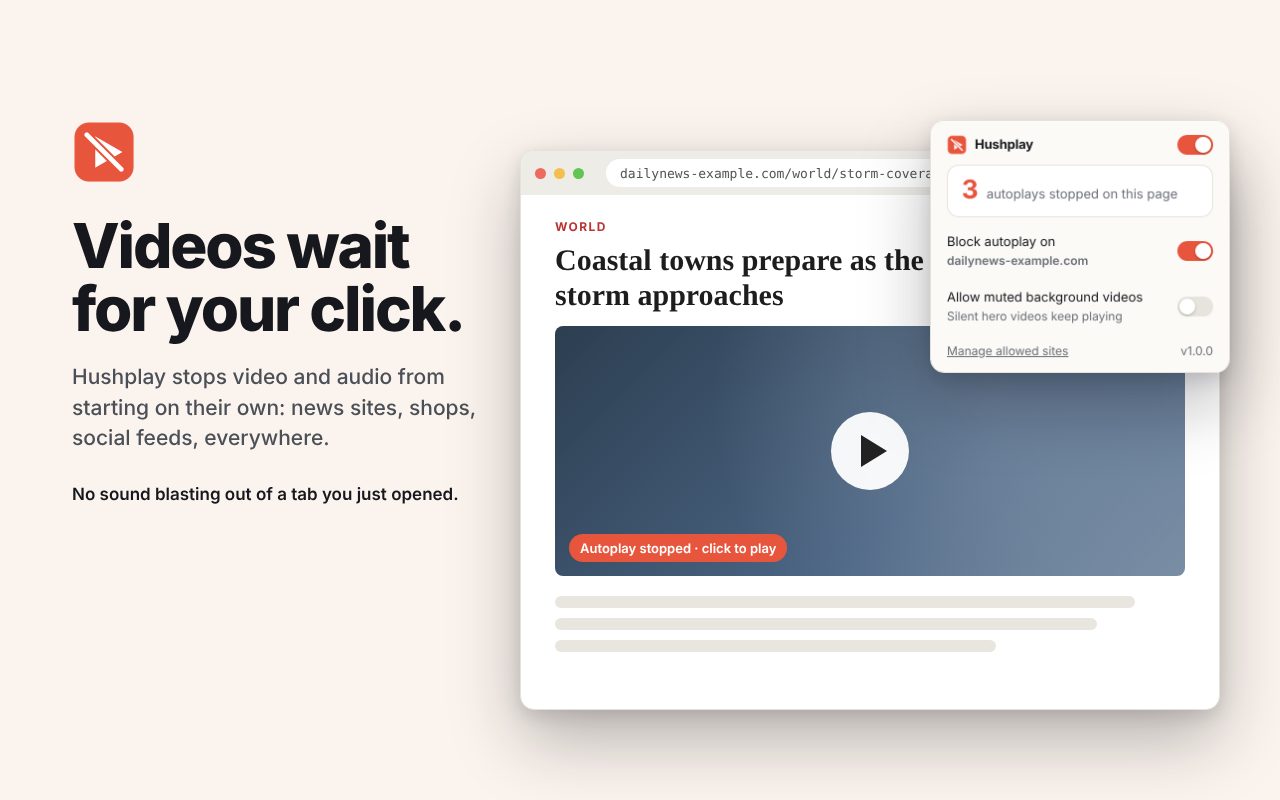
Hushplay stops video and audio that you didn't start. Nothing plays until you click play, and then it plays normally. Sites you trust, like a streaming service, can be allowed with one click.
Add to ChromeHushplay on the Chrome Web Store
How to use it
- Add Hushplay to Chrome from the Chrome Web Store.
- Browse as usual. Videos and audio stay paused until you click play.
- To let a site autoplay, open Hushplay from the toolbar and allow that site.
Price
Free.
Questions
Does it block ads?
No. It only stops media from playing by itself. Pair it with an ad blocker if you want both.
Will videos I click still play?
Yes. Anything you start yourself plays normally.
What does it collect?
Nothing. Your allowed-sites list stays in your browser.